PkPaperka
Back to tools

Vocabulary puzzles

Generate a custom printable word search

Start instantly with a ready-made theme or add your own spelling list. Choose the grid and directions, hide the word bank for a real challenge, preview every letter, then export the puzzle and highlighted answer page.

PDF exportYour own words

Exact puzzle preview

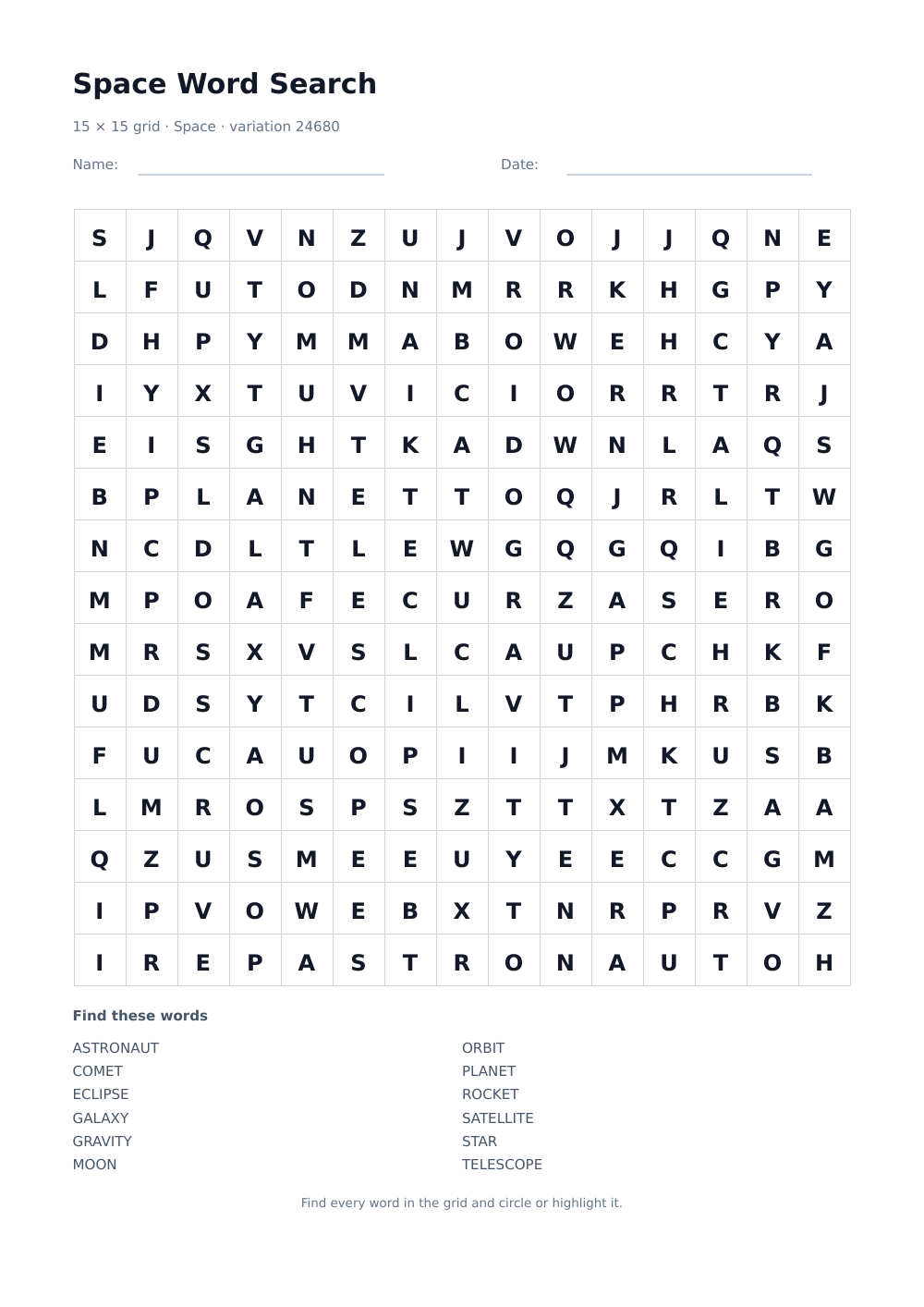
Your word search

SpaceMedium · add diagonals15 × 15 grid12 words
Word Search ChallengeVariation #24680
Name:Date:
Find these words
ASTRONAUTCOMETECLIPSEGALAXYGRAVITYMOONORBITPLANETROCKETSATELLITESTARTELESCOPE

What does this word search generator make?

It places a ready-made theme or your own words into a square letter grid, allows compatible words to cross, fills the remaining cells from the page language's alphabet, and creates a matching answer page. The preview and PDF use the same variation and placement data.

How should I prepare and print a word search?

Keep the longest word shorter than the selected grid width, use 8–15 related terms for a balanced worksheet, and print at actual size. Portrait works well for a large grid plus word bank; landscape gives shorter but wider writing space.

What can custom word searches teach?

Use them for spelling patterns, science terms, geography names, language vocabulary, book characters, holiday themes, classroom review, early-finisher work, family events, travel packs, or screen-free recreational puzzles.

Rules of the game

How to play a word search

The goal is to find every hidden word in the letter grid. Words always follow one straight, unbroken line, and different words may share a letter.

1. Read the challenge

Use the word bank when it is shown. In hidden-list mode, use the displayed theme and word count to discover the words without seeing them first.

2. Scan in allowed directions

Easy uses words running right or down. Medium adds forward diagonals. Hard can also run left, up, and along reverse diagonals.

3. Trace exact adjacent letters

Start at a possible first letter and follow neighboring cells in one direction. Do not turn a corner, jump over a cell, or rearrange letters.

4. Mark and complete the set

Circle or highlight a complete word, then cross it off the bank. Finish when every listed word—or the stated number of hidden theme words—has been found.

Build a useful puzzle

Design the vocabulary task before filling the grid.

A word search has more learning value when the list belongs to one clear topic and the difficulty matches the reader. Grid size, word length, and allowed directions should work together.

Use one coherent theme

Choose terms from the same lesson, chapter, spelling pattern, or topic. A focused list helps learners connect the visual search with vocabulary they are already studying.

Check word length first

A word must fit inside the grid in one straight line. Use 12 × 12 for short words, 15 × 15 for most classroom lists, and 18 × 18 when several terms are long.

Increase directions gradually

Easy uses forward horizontal and vertical words. Medium adds forward diagonals. Hard also allows backward and upward placement, which demands more systematic scanning.

Keep the word bank readable

Eight to fifteen words make a practical single-page activity. Eighteen is useful for older learners, but a shorter list leaves more time to discuss meanings after the search.

Pair finding with retrieval

After a learner finds a word, ask for a definition, translation, example sentence, category, or drawing. This turns letter matching into active vocabulary review.

Create another layout when needed

Save the page link when several students need the same puzzle. Use New puzzle to rearrange the identical word list for homework, a retake, another group, or a fresh game.

FAQ

Word search generator FAQ

Can I use phrases or words with punctuation?

Yes. Spaces, hyphens, apostrophes, and other non-letter characters are removed before placement, so “solar system” appears as SOLARSYSTEM. The word bank shows the normalized version that learners should find.

Why was one of my words not placed?

The word may be longer than the selected grid or the grid may be too crowded for a conflict-free straight line. The page lists every omitted word; choose a larger grid, shorten the list, or create a new puzzle variation.

How do the three difficulty levels work?

Easy places words forward across or down. Medium also uses forward diagonals. Hard uses all eight directions, including backward, upward, and reverse diagonal words.

What does the variation number do?

It identifies the current arrangement of words and filler letters. The number is saved in the page link, so reopening the same link reproduces the preview, downloaded puzzle, and answer page exactly.

Does the answer page show overlapping words?

Yes. Every cell belonging to a placed word is highlighted. When two words share a matching letter, that cell is highlighted once and correctly belongs to both placements.

Can I use non-English words?

Yes. The Ukrainian page uses a Ukrainian filler alphabet, and the generator accepts Unicode letters. Keep one alphabet per puzzle when possible so filler letters match the vocabulary naturally.
Practical printing guide

How to get a clean printable result.

Small print settings can make a large difference with worksheet-style PDFs. Use these notes before printing a full batch, especially when you are preparing pages for a class, binder, planner, or repeated weekly routine.

Use actual size

Print the downloaded PDF at 100% or actual size when spacing matters. Fit-to-page can shrink ruled lines, grid squares, flashcards, and planner boxes enough to make writing space feel cramped.

Match the paper

Choose US Letter or A4 before downloading. The generated PDF uses that page size directly, so selecting the same size in the printer dialog prevents unexpected margins or clipped edges.

Test one page first

For new templates, print a single page before making copies. Check line contrast, writable space, margins, and whether the page works better in portrait or landscape orientation.

Save repeat setups

When a layout works, bookmark the configured page. The controls are reflected in the URL, which makes it easy to return to the same printable without rebuilding it from scratch.