PkPaperka
Back to tools

Logic, planning, and pencil control

Generate printable maze worksheets

Build a fresh maze set for class, home, therapy, or quiet-time practice. Every worksheet has one connected route from the opening at the top to the exit at the bottom, and optional answer pages trace the exact solution generated from the same variation number.

9×9 TO 21×21 · LETTER OR A4Solvable mazes with matching answer pages

Exact first worksheet preview

Check the maze before printing

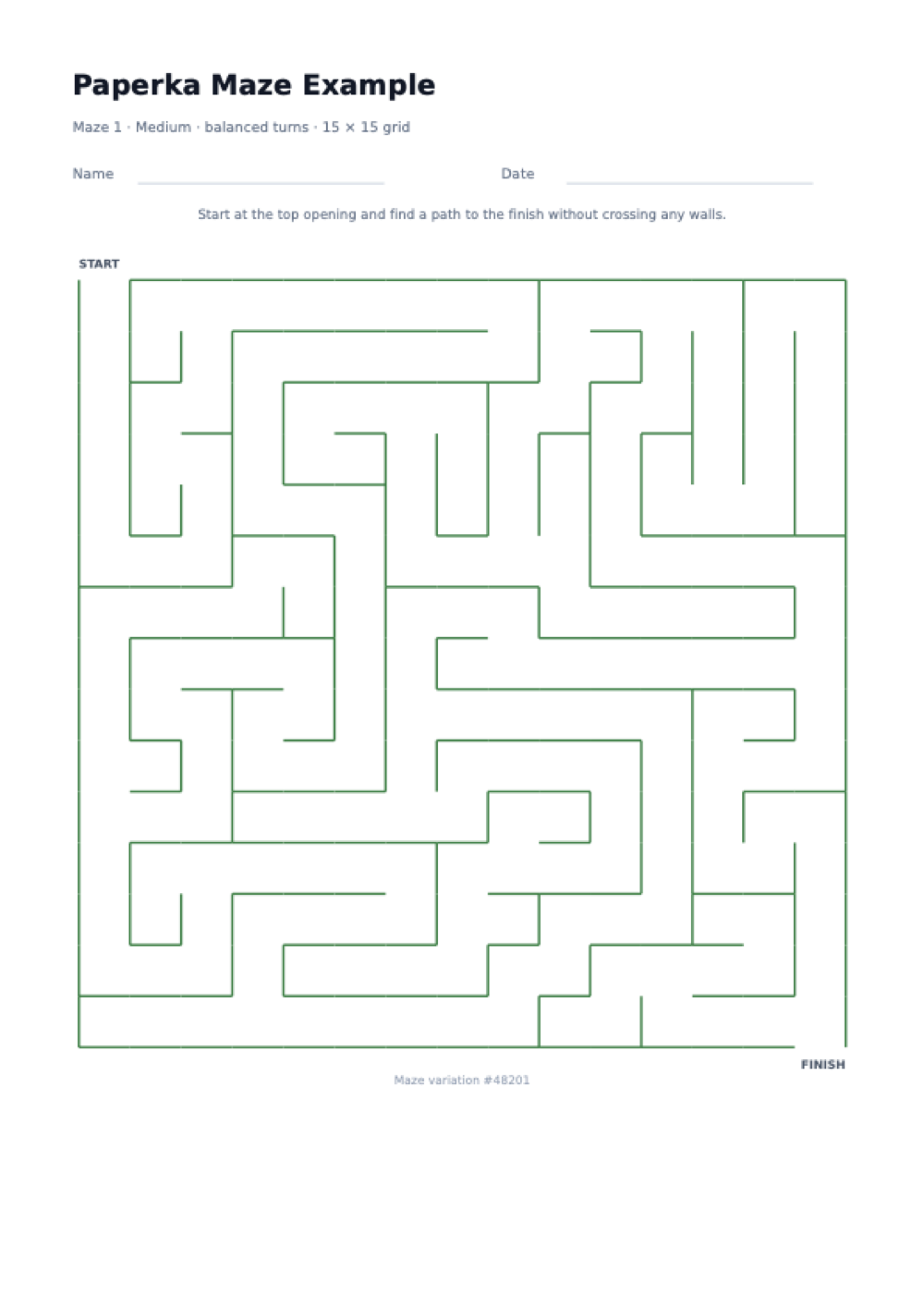
15 × 15 · standardMedium · balanced turns2 mazesAnswers included
Maze ChallengeMaze 1 · Medium · balanced turns
NameDate

Start at the top opening and find a path to the finish without crossing any walls.

START FINISH
Maze variation #48201

What does this printable maze generator create?

The generator builds a square line maze from individual cells and removes passages until every cell belongs to one connected structure. The entrance is above the top-left cell and the finish is below the bottom-right cell. Because the passages form a spanning tree, there is exactly one simple route between any two cells rather than a decorative maze that may be blocked or ambiguous.

What is included in the maze PDF?

Each worksheet includes your title, custom instruction, optional name and date lines, a large centered maze, clear START and FINISH labels, and its variation number. If answers are enabled, every maze receives a separate solution page where a colored line runs through cell centers without hiding the walls. Letter and A4 geometry is generated directly for the chosen orientation.

When are maze worksheets useful?

Use them for early-finisher folders, morning work, indoor recess, travel packs, classroom stations, occupational-therapy pencil practice, visual scanning, planning ahead, homeschool logic lessons, or a calm screen-free activity. Printing several unique pages lets learners work independently without everyone copying the same route.

Four choices that control the result

How to choose an appropriate printable maze

Grid size and path style solve different problems. Set them deliberately, preview the wall density, and keep answer pages available when the worksheet will be assessed.

1. Choose grid size for age and print scale

A 9×9 grid has wider corridors and fewer cells, so it suits younger learners and thicker pencils. A 15×15 grid is a balanced worksheet. A 21×21 grid adds visual density and is best when fine pencil control and sustained attention are already comfortable.

2. Choose difficulty for decision frequency

Easy mazes favor continuing in the same direction, creating longer recognizable corridors. Medium reduces that preference. Hard allows turns to occur more freely, so the solver must pause, scan, and revise direction more often.

3. Verify the first page at actual print size

The browser preview shows the exact structure, but paper size determines the physical width of each corridor. Print one page at 100% scale before producing a class set, especially for the 21×21 grid or a learner using a broad marker.

4. Retain the matching variation number

The variation number identifies the generated set. Keep it on worksheets and answers so a replacement copy can be recreated and the correct solution matched to each maze.

Use mazes as purposeful practice

Turn a simple path puzzle into a focused learning activity.

A maze works best when its visual complexity, tool, time, and feedback match the learner. These approaches add structure without turning a recreational worksheet into a high-pressure test.

Model scanning before drawing

Ask the learner to trace a short section with a finger or eyes before committing pencil marks. This separates route planning from motor execution and reduces repeated erasing near the start.

Teach a consistent recovery strategy

When a corridor ends, return to the most recent untested junction instead of restarting the entire maze. Lightly marking explored dead ends can make this process visible and support systematic problem solving.

Match the writing tool to the corridor

Use pencil for correction, colored pencil for a clear route, or a dry-erase marker when the sheet is laminated. Large grids have narrower printed corridors, so avoid a marker tip that hides adjacent walls.

Use two copies for planning and fluency

On the first copy, allow scanning, backtracking, and notes. On the second, ask for a clean continuous route. Comparing the attempts shows whether planning improved without changing the puzzle itself.

Build a differentiated station

Give learners the same title and instructions but vary grid size or path style. The activity remains recognizable across the group while visual load and decision count are adjusted.

Pair the maze with oral directions

One learner can describe movements using up, down, left, and right while a partner traces. This adds spatial vocabulary, listening, turn-taking, and error checking to the worksheet.

Use the solution as feedback, not a shortcut

Keep answer pages separate during independent work. Afterwards, place the solution beside the attempt and identify the first incorrect junction rather than merely replacing the learner's route with the final line.

Archive successful worksheet settings

Record the grid, difficulty, and base variation number for a set that printed well. The same values reproduce every wall exactly, while New maze set creates different worksheets at the same skill level.

FAQ

Printable maze generator FAQ

Is every generated maze guaranteed to be solvable?

Yes. Generation visits every cell and connects it to the maze without creating disconnected regions. A solver then verifies and stores the route from the top entrance to the bottom exit before the preview or PDF is rendered.

Can a maze have more than one correct route?

No. These are perfect mazes: the internal passages form a tree with exactly one fewer connection than cells. That structure gives one simple path between the entrance and finish and prevents loops with multiple equivalent answers.

What changes between easy, medium, and hard?

The levels change directional bias, not solvability. Easy favors longer straight corridors, medium balances straight runs and turns, and hard adds more frequent direction changes. Grid size separately changes the total number of cells.

How many unique mazes can I print at once?

Choose one to four worksheets per PDF. Each uses a distinct derived seed, so the walls differ while grid size, difficulty, title, and page settings remain consistent across the set.

Can I regenerate the same maze later?

Yes. Use the same grid size, difficulty, worksheet count, and variation number. The generator is deterministic, so it rebuilds the same walls and corresponding solution pages.

Are answer pages included automatically?

They are enabled by default and can be turned off. When enabled, answer pages follow all worksheet pages in the same order and identify both maze number and variation.

Which format is best for young children?

Start with the 9×9 easy maze in portrait orientation. Its larger physical cells and longer corridor runs reduce visual and motor demands. Increase either grid size or path difficulty after the learner solves it comfortably.

Is the maze generator free and watermarked?

The generator is free, requires no account, and places no watermark on worksheets. Export Letter or A4 pages in portrait or landscape orientation with your selected title, instruction, font, margins, and wall color.
Practical printing guide

How to get a clean printable result.

Small print settings can make a large difference with worksheet-style PDFs. Use these notes before printing a full batch, especially when you are preparing pages for a class, binder, planner, or repeated weekly routine.

Use actual size

Print the downloaded PDF at 100% or actual size when spacing matters. Fit-to-page can shrink ruled lines, grid squares, flashcards, and planner boxes enough to make writing space feel cramped.

Match the paper

Choose US Letter or A4 before downloading. The generated PDF uses that page size directly, so selecting the same size in the printer dialog prevents unexpected margins or clipped edges.

Test one page first

For new templates, print a single page before making copies. Check line contrast, writable space, margins, and whether the page works better in portrait or landscape orientation.

Save repeat setups

When a layout works, bookmark the configured page. The controls are reflected in the URL, which makes it easy to return to the same printable without rebuilding it from scratch.